
Guide
How to Use Higgs TTS — Complete Step-by-Step Guide (2026)
A practical walkthrough of Higgs TTS — from your first text-to-speech generation to cloning a voice. You will learn the interface, the best voice settings, scriptwriting tips, and how to fix common issues.
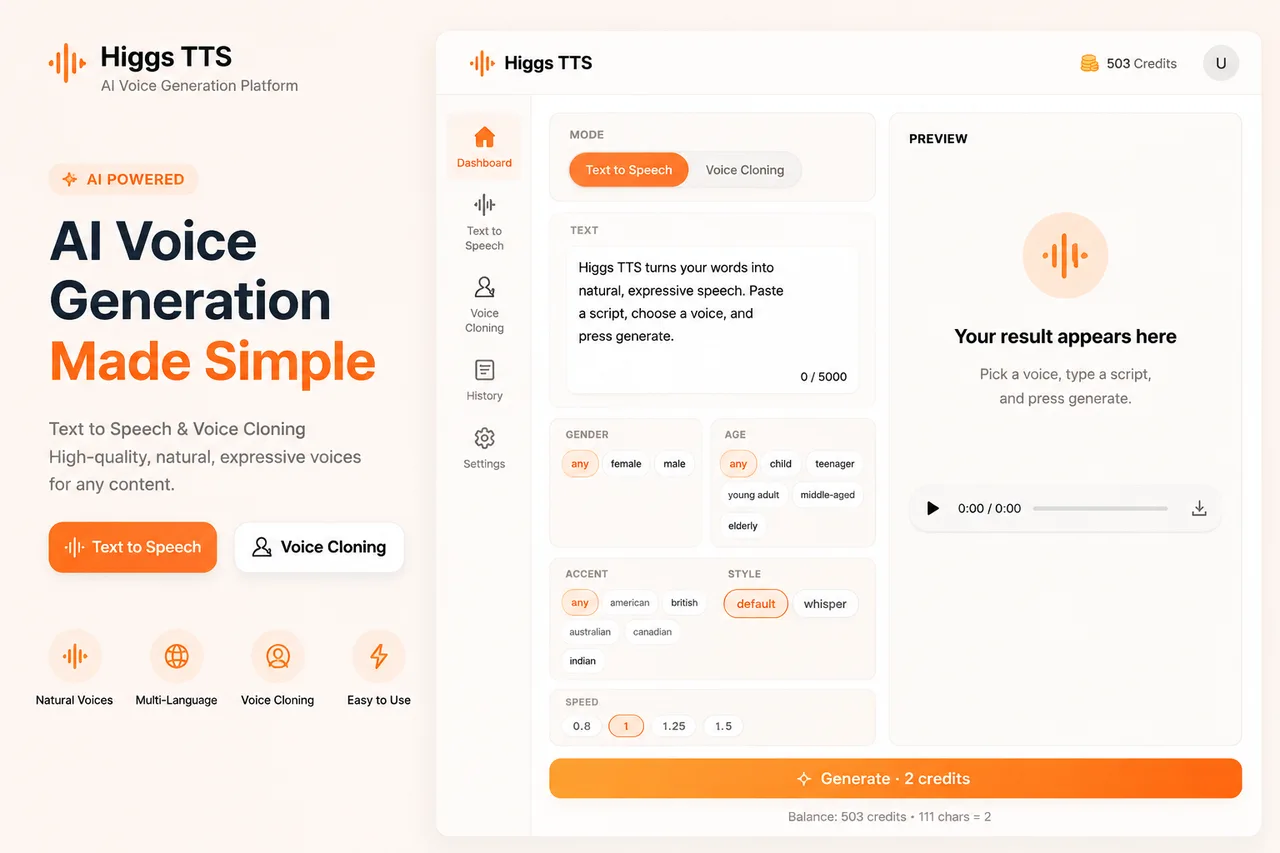
Quick answer: how to use Higgs TTS
- Choose a mode: Text to Speech or Voice Cloning.
- Paste your script or upload a reference voice.
- Select voice settings (gender, accent, age, style).
- Adjust speed and tone.
- Click Generate.
- Preview and download the AI-generated audio.
Key insight: voice quality depends more on script quality than on settings.
What is Higgs TTS?
Higgs TTS is a text-to-speech system that turns written text into natural-sounding spoken audio. Instead of robotic, monotone output, it aims for human-like pronunciation, natural rhythm and pauses, multi-language support, and flexible speed and tone control. It works for both short scripts and long-form narration.
The two core tools are Higgs Audio v3 TTS for generating speech from text, and Higgs TTS AI Voice Cloning for reproducing a voice from a short sample. Common uses include YouTube voiceovers, short-form video narration, online courses, audiobooks, marketing videos, app voice interfaces, and accessibility tools.
How Higgs TTS works (simple explanation)
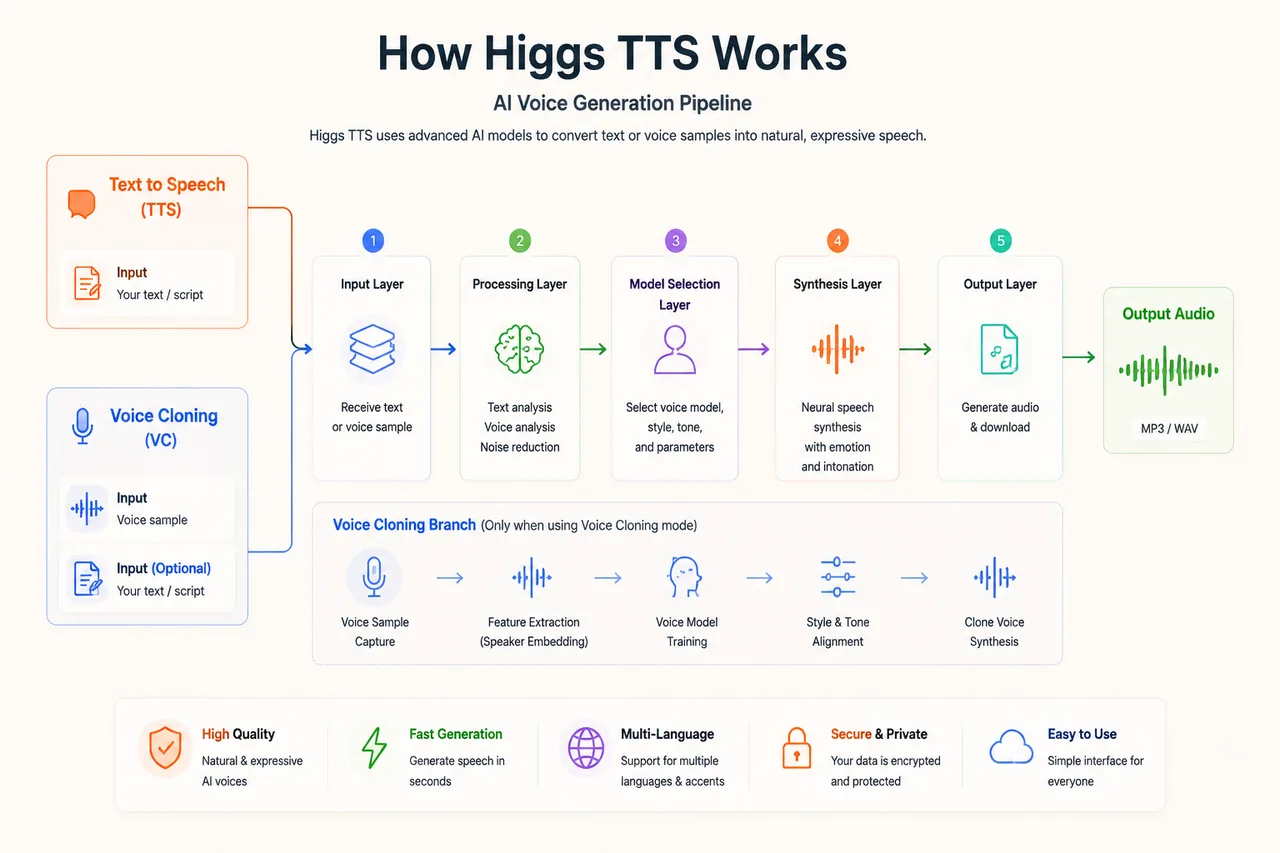
Higgs TTS is a dual-pipeline system supporting both text-to-speech and voice cloning. Whichever mode you choose, it follows the same five stages: input processing (text or audio), a data-processing layer that breaks text into sentences and phonetics or analyzes a voice sample, model selection (a described voice style or your cloned voice profile), speech synthesis, and final audio rendering. You can then preview, download an MP3, or regenerate with different settings.
Who should use Higgs TTS?
It fits content creators (YouTubers, TikTok and Reels producers) who need fast voice generation; educators converting lessons into audio; marketers producing ads and explainer scripts; developers adding voice output or accessibility features; and beginners who want to test AI voice generation with no technical setup.
Before you start using Higgs TTS
Good results always start with clean input. For text-to-speech, use short sentences (10–25 words), clear punctuation, and split complex ideas into smaller chunks — avoid long unstructured paragraphs. For voice cloning, also prepare a clean 3–30 second reference clip with a single speaker, a stable tone, and no music, echo, or overlapping voices.
Decide your use case first. Marketing and ads suit an energetic tone at 1.25 speed; e-learning suits a slow, clear neutral young-adult voice at 0.8–1.0; audiobooks suit a natural, expressive middle-aged voice at 1.0. For multi-language projects, keep one language per sentence and a consistent accent throughout — and for cloning, keep the reference and target text in the same language where possible.
Step-by-step: how to use Text to Speech
At the top of the tool you will see a MODE selector. Choose Text to Speech (the default, recommended for most users), then follow these steps.
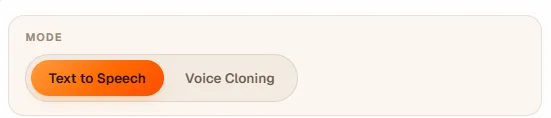
Step 1: Input your script
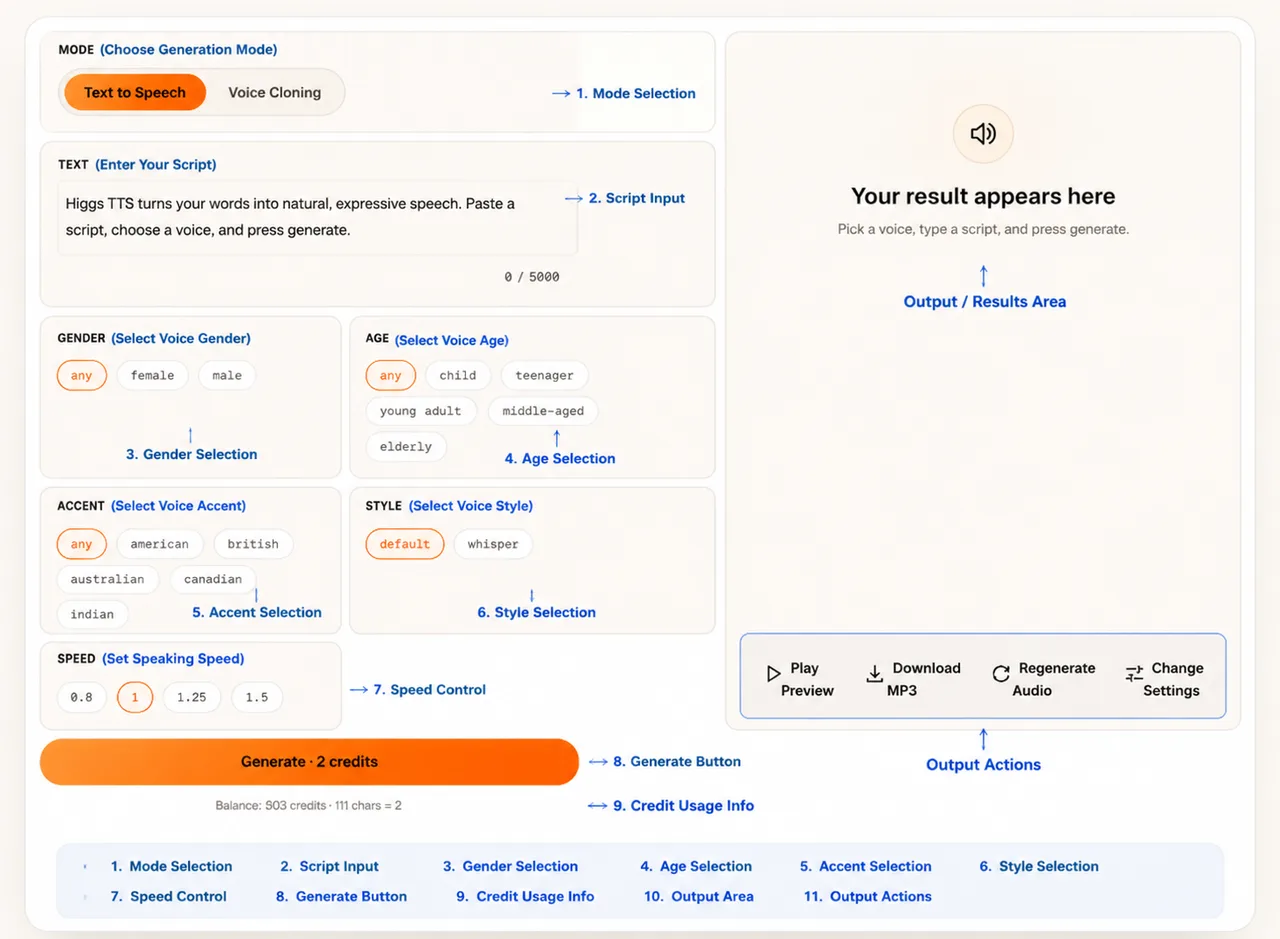
Paste your text into the large input box. This is the most important step — about 80% of output quality comes from script structure, not settings. Use short sentences (10–25 words), clear punctuation, and one idea per line, and write the way you speak rather than the way you write an article.
Step 2: Choose gender
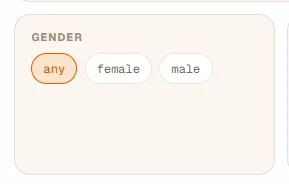
Pick Any, Female, or Male. Male voices suit documentaries, tech, and professional narration; female voices suit ads, storytelling, and social content. Leave it on Any to let Higgs choose a fitting delivery.
Step 3: Set the age
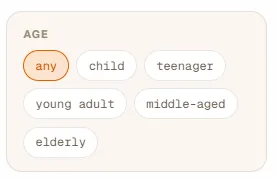
Child, Teenager, Young Adult, Middle-aged, or Elderly. Young Adult is the most natural, neutral default for professional content. Middle-aged works well for podcasts and storytelling; Elderly gives a slow, calm narration.
Step 4: Pick an accent
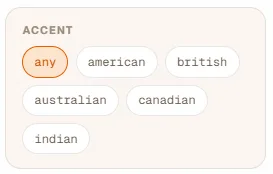
American is the safest default for a global audience and YouTube content. British suits education, storytelling, and documentary tone. Keep one accent consistent across a project.
Step 5: Select a style
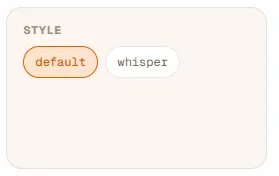
Default is balanced, natural speech and fits about 90% of use cases. Whisper gives a soft, cinematic, ASMR-style delivery — avoid it for ads, tutorials, and business content.
Step 6: Adjust the speed
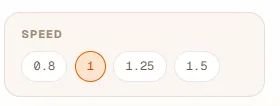
0.8 for teaching and accessibility, 1.0 as the natural default, 1.25 for TikTok and energetic ads, 1.5 for trailers and fast social clips. Start at 1.0 and adjust only if the pacing feels off.
Step 7: Generate the audio

Press Generate. Behind the scenes Higgs segments the text, processes the language, selects the voice model, synthesizes speech, and renders the audio. Generation time depends on script length and server load.
Step 8: Preview and download
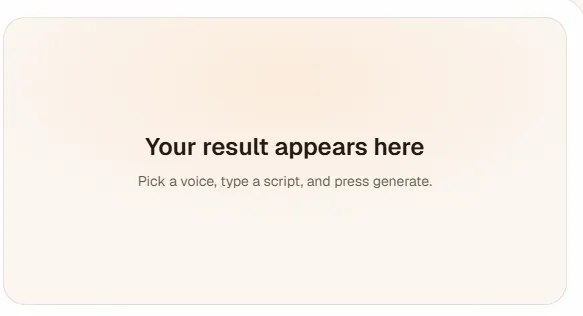
Your result appears in the right panel. Play it back, download the audio file, or regenerate with a different voice, speed, or script until the delivery fits.
Step-by-step: how to use Voice Cloning
Voice Cloning is the advanced mode. It reproduces a real voice from a sample, so it adds a consent step and a reference upload. Only clone a voice you own or have permission to use.
Step 1: Switch to Voice Cloning mode
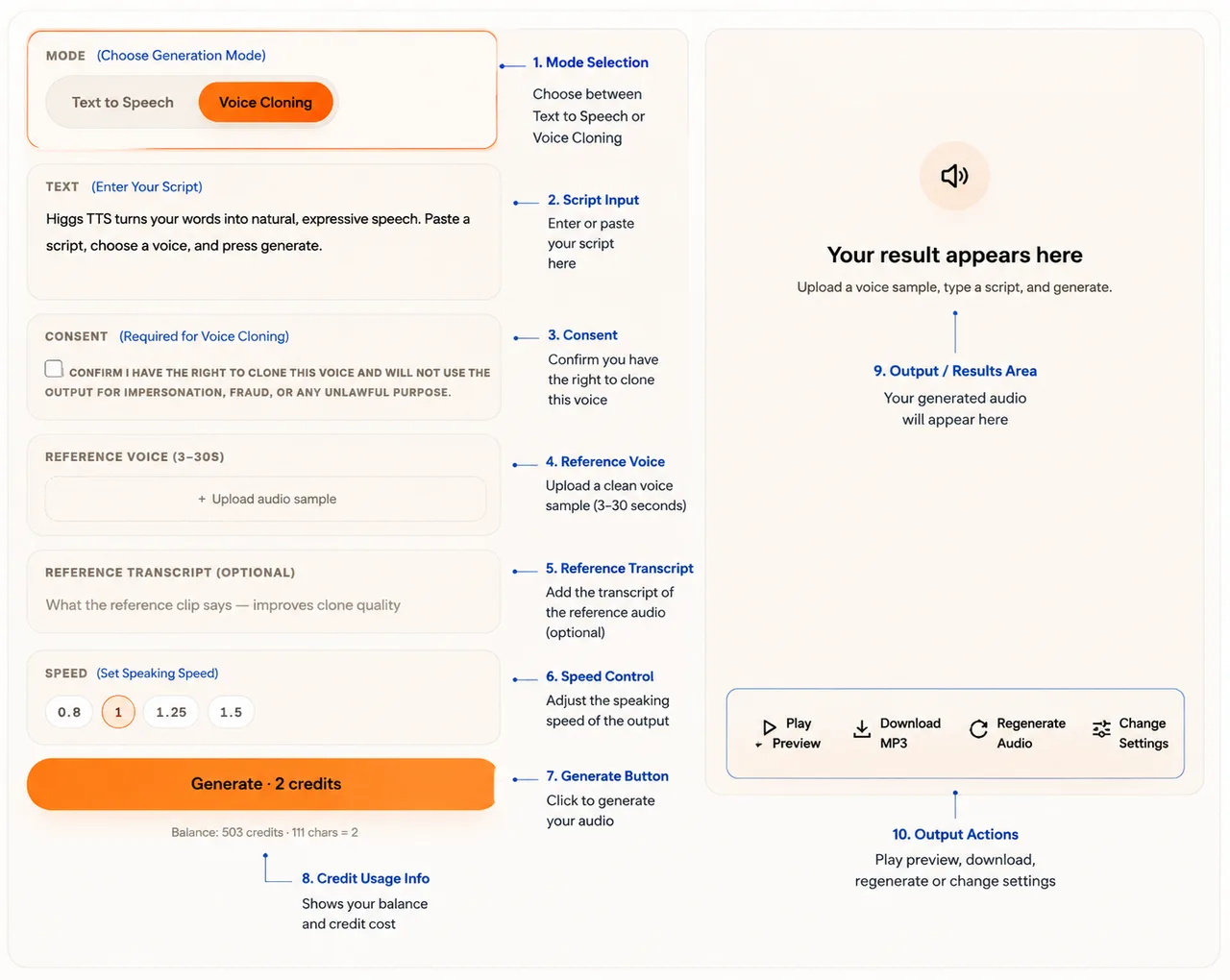
At the top of the tool, select Voice Cloning. The interface switches into a voice-replication workflow with new modules: consent, reference voice upload, and an optional transcript.
Step 2: Confirm consent
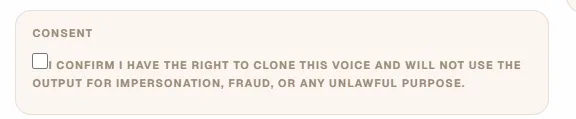
Tick the box confirming you have the right to clone this voice and won't use it for impersonation, fraud, or unlawful purposes. Generation stays blocked until you check it — this protects identity rights and keeps the tool legal to use.
Step 3: Upload a reference voice
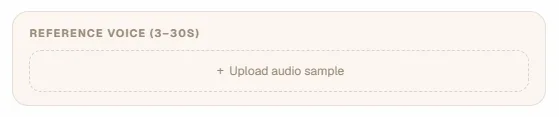
Upload a clean 3–30 second sample with a single speaker, no background music, and a consistent tone. Avoid music tracks, multi-speaker conversations, echo-heavy or low-quality phone audio. The cleaner the sample, the more accurate the clone.
Step 4: Add a reference transcript (optional)

Type what the reference clip says. It is not required, but strongly recommended — it helps the model understand the sample's words, structure, and pronunciation context, improving clone quality.
Step 5: Enter your target text
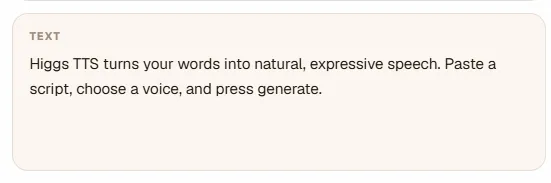
Write the new text you want spoken in the cloned voice. The same script rules apply: short sentences, spoken-language style, and clear punctuation produce the most natural result.
Step 6: Adjust the speed

Choose 0.8, 1, 1.25, or 1.5. In cloning mode, higher speeds can reduce voice similarity, so keep it near 1.0 when matching a voice closely matters.
Step 7: Click Generate

Higgs extracts a voice embedding from your sample, maps voice features, aligns them to your text, and synthesizes speech in the cloned voice.
Step 8: Preview and download
Play the cloned-voice preview, download the audio file, regenerate, or replace the reference sample to try a different voice.
Advanced Higgs TTS techniques
Write like spoken dialogue rather than an article. Simulate natural pauses with punctuation and short chunks, and design scripts like an audio timing map (roughly 2–4 seconds per sentence). Even without explicit emotion controls, you can guide tone with structure: short sentences create urgency, longer sentences feel like storytelling, questions drive engagement. For multi-voice content, keep a consistent narrator voice and only switch voices intentionally — consistency improves brand identity and listening comfort.
Real-world use cases
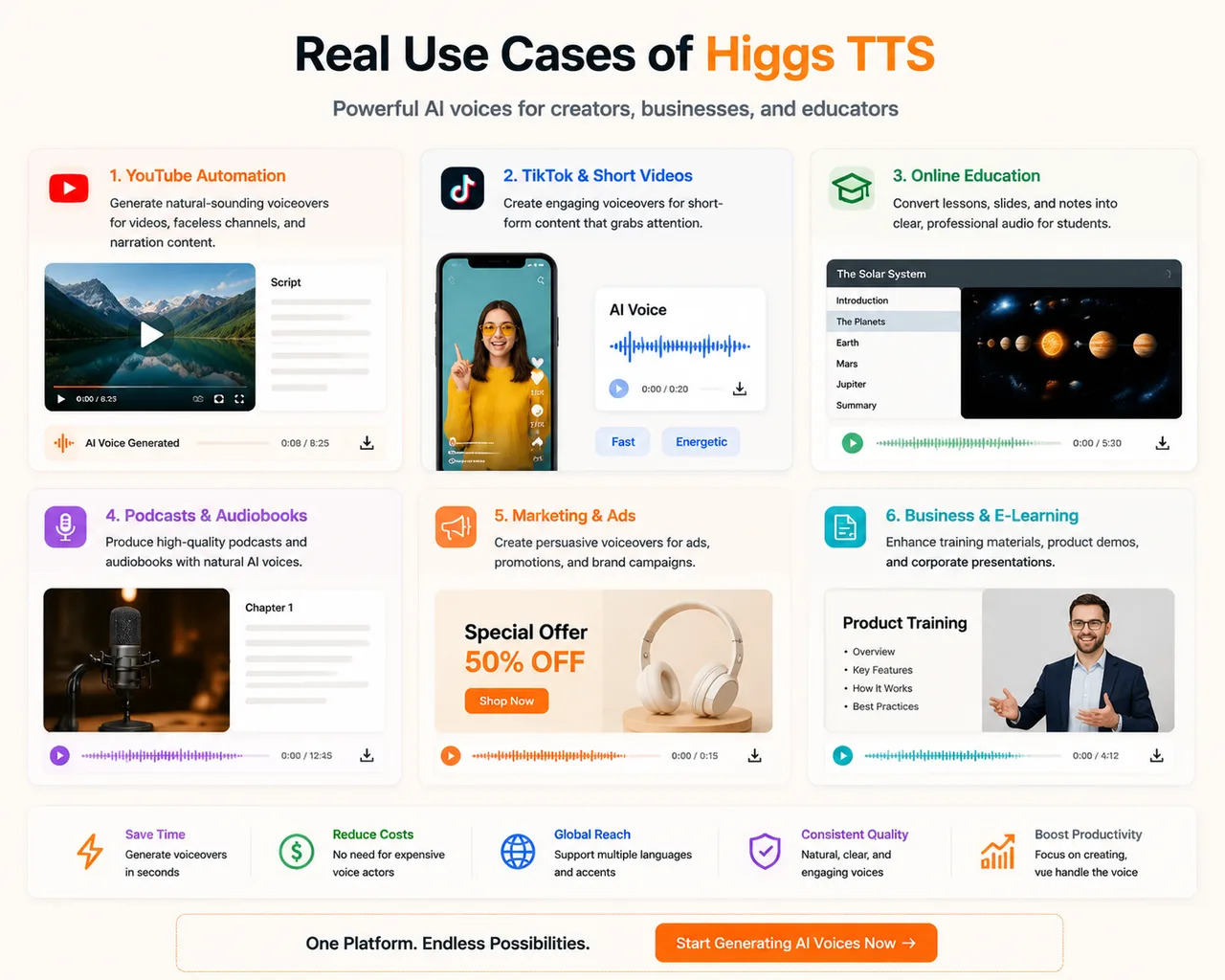
Creators use Higgs TTS for YouTube narration without recording, scaling production, and faster localization. E-learning platforms turn written lessons into audio courses with a consistent teaching voice. Marketers produce ads, social campaigns, and explainers focused on energy and clarity. It also powers accessibility tools and integrates into apps, web applications, and customer-support systems.
How to make Higgs TTS sound more human
Use conversational writing instead of academic phrasing, add natural pauses with commas, full stops, and paragraph breaks, and avoid long formal sentences, complex grammar, and abstract language. Vary sentence length to shape emotion — short for urgency, longer for storytelling, questions for engagement. The biggest single improvement almost always comes from rewriting the script, not from changing settings.
Common mistakes to avoid
- Using raw, unedited text — long, unstructured text leads to unnatural speech.
- Overloading one paragraph — large blocks of text reduce clarity.
- Ignoring voice selection — the wrong voice ruins even a well-written script.
- Excessive parameter tuning — too many adjustments make output inconsistent.
- Not reviewing output — always listen before exporting the final audio.
Troubleshooting guide
- Robotic voice: shorten sentences, add punctuation, change the voice.
- Mispronunciation: simplify spelling, rewrite the sentence, avoid complex terms.
- Flat tone: use conversational writing and vary sentence length.
- Slow generation: split the script into smaller parts.
FAQ
Higgs TTS guide — frequently asked questions
What is Higgs TTS used for?▼
It converts text into natural-sounding speech for videos, YouTube, apps, e-learning, and accessibility. With voice cloning, it can also reproduce a permitted voice from a short reference clip.
Why does my TTS audio sound robotic?▼
Usually because of long sentences, missing punctuation, or complex grammar. Shorten sentences, add punctuation, write the way you speak, and try a different voice to fix it.
How do I make the AI voice sound natural?▼
Use short sentences, conversational writing, and proper punctuation. Script quality matters more than settings — rewriting the text usually improves output more than tweaking parameters.
Can I use Higgs TTS for YouTube?▼
Yes. It is widely used for faceless YouTube channels, narration, and short-form video. Keep the script conversational and pick an accent that fits your audience.
What is the best script format?▼
Short sentences of 10–25 words, a spoken tone, one idea per line, and clear punctuation. Break long content into 3–6 short blocks with logical flow.
Can I use Higgs TTS for commercial projects?▼
The audio you generate is yours to use, and you are responsible for the rights to your script and any reference audio. See our Terms for the full usage conditions.
Start using Higgs TTS today
Turn your scripts into natural speech — experiment with voices, refine the text, and iterate. Open Higgs Audio v3 TTS or try Higgs TTS AI Voice Cloning with 3 free credits.